> For the complete documentation index, see [llms.txt](https://docs.scaleflex.com/llms.txt). Markdown versions of documentation pages are available by appending `.md` to page URLs; this page is available as [Markdown](https://docs.scaleflex.com/digital-asset-management-dam/plugins-and-connectors/connectors/akeneo-pim-1/akeneo-community-pim-connector.md). Agents can also search and read this documentation through its [MCP server](https://docs.scaleflex.com/~gitbook/mcp).

# Akeneo Community PIM Connector

Scaleflex DAM (VXP) Akeneo Connector

## Installation & Activation

### Prerequisites <a href="#od_117c69a2" id="od_117c69a2"></a>

* You need an active DAM account. [Register for a demo](https://www.scaleflex.com/en/request-a-demo) if you don't already have one;
* Akeneo instance

### Activation by Data source(CE Version)

Prepare crendentials by go to Akeneo instance go to Connect / Connection settings&#x20;

* Create
  * Label: any
  * Code: any
  * Flow type: Data source
* Then you will be redirect to this page, <mark style="color:red;">**please add a Role and Group to this Data source**</mark>

  <figure><img src="https://2536208400-files.gitbook.io/~/files/v0/b/gitbook-x-prod.appspot.com/o/spaces%2Fqsq2dR7Fjagf5eTifWZx%2Fuploads%2FuT99NLra9ytk5YztmstV%2Fimage.png?alt=media&amp;token=dcc3163a-c049-4741-9f32-67b66415bef2" alt=""><figcaption><p>Data Source setting</p></figcaption></figure>
* Save these information to use in next step

Go to Setting / Automation / Integrations or use this link: <https://hub.scaleflex.com/settings/dam/automations/integrations>

* Click on Enable Akeneo community

<figure><img src="https://2536208400-files.gitbook.io/~/files/v0/b/gitbook-x-prod.appspot.com/o/spaces%2Fqsq2dR7Fjagf5eTifWZx%2Fuploads%2FXqIROZ6zde3n7bXygApx%2Fimage.png?alt=media&amp;token=3228d737-0914-4f73-84de-795b9d614a56" alt=""><figcaption><p>Welcome Page</p></figcaption></figure>

* Enter credentials from Akeneo, then Validate and Save Change

<figure><img src="https://2536208400-files.gitbook.io/~/files/v0/b/gitbook-x-prod.appspot.com/o/spaces%2Fqsq2dR7Fjagf5eTifWZx%2Fuploads%2Fx9nnRP07Lcez8wGiCx0O%2Fimage.png?alt=media&amp;token=e4353a2f-d7f3-4720-baf3-0129d80bfb4a" alt=""><figcaption></figcaption></figure>

* After validated, you can change your credentials in **Credentials Tab**

## Configurations

Go to Setting / Automation / Integrations or use this link: <https://hub.scaleflex.com/settings/dam/automations/integrations>

There are 2 sections:

### General Setting

<figure><img src="https://2536208400-files.gitbook.io/~/files/v0/b/gitbook-x-prod.appspot.com/o/spaces%2Fqsq2dR7Fjagf5eTifWZx%2Fuploads%2FNckTMCm8THXlEfqDs8yC%2Fimage.png?alt=media&amp;token=749d143f-8ac6-4e7b-8ce8-0545045c5a80" alt=""><figcaption></figcaption></figure>

#### Default Configuration

* Enable / Disable: If disabled, you cannot use the Akeneo sync feature on DAM
* Default size: Default image size will be used if there are no configs related to each asset
* Image resize technique:
  * Crop: Cut image part to resize
  * Fit: Keep all content in image, and make image fit the size
* Addition subfix URL: append a suffix to asset URLs to enable transformations,  read more here: [Transformations](https://docs.scaleflex.com/dynamic-media-optimization-dmo/transformations/image-optimization/operations.md)
* Please click "Save" to update the configuration

#### Image resize setting

**How does it work?**

* Can be duplicated
* Priority: Bottom to top, and it will apply the first one match the setting, check example bellow.

*Example:*&#x20;

An Asset with these information:

* Scope: commerce / Locale: en\_US / Family: filerobotmedia
* Will try to match setting following the steps below:
  * First try: Type: Asset / Family: filerobotmedia / Scope: commerce / Locale: en\_US
  * Second try: Type: Asset / Family: All Items / Scope: commerce / Locale: en\_US
  * Third try: Type: Global / Scope: commerce / Locale: en\_US
  * Use size and image resize technique from Default configuration above

**Flow guide**

* Select type, there are 4 types:
  * Global: Affects all assets including entity and asset
  * Asset: Asset Family
  * Entity: Entity Reference
  * Product
* Choose family, we can choose **"All items"**, this will be affected all Families in selected type
* Scope and locale

<table><thead><tr><th width="225.3828125">Setting in DAM</th><th>Akeneo attribute</th></tr></thead><tbody><tr><td>No Scope + No Locale</td><td><ul><li>Value per locale: False </li><li>Value per channel: False</li></ul></td></tr><tr><td>Scope + No Locale</td><td><ul><li>Value per locale: False </li><li>Value per channel: True</li></ul></td></tr><tr><td>No Scope + Locale</td><td><ul><li>Value per locale: True </li><li>Value per channel: False</li></ul></td></tr><tr><td>Scope + Locale</td><td><ul><li>Value per locale: True </li><li>Value per channel: True</li></ul></td></tr></tbody></table>

* Image resize technique: Fit or Crop
* Size: Must follow format: width x  height, example: **300x400**
* Addition subfix URL: append a suffix to asset URLs to enable transformations,

### Sync Setting

<figure><img src="https://2536208400-files.gitbook.io/~/files/v0/b/gitbook-x-prod.appspot.com/o/spaces%2Fqsq2dR7Fjagf5eTifWZx%2Fuploads%2FaKJvVgDfMg9BucY4OkJx%2Fimage.png?alt=media&amp;token=e42bf6d3-9899-4a00-8f4d-a366f763a192" alt=""><figcaption></figcaption></figure>

#### PIM to DAM

<figure><img src="https://2536208400-files.gitbook.io/~/files/v0/b/gitbook-x-prod.appspot.com/o/spaces%2Fqsq2dR7Fjagf5eTifWZx%2Fuploads%2FqVTQ6D85kg90xG4AF8eQ%2Fimage.png?alt=media&amp;token=20710de4-19a6-483c-a051-36582a613a83" alt=""><figcaption></figcaption></figure>

To enable PIM to DAM sync: When we update some attribute(check supported field type above) in a PIM record(Asset, Product), it will update the mapped metadata in DAM.

* Go to Access to get an API Key: <https://hub.scaleflex.com/settings/project/access/api-keys>, please select All

<figure><img src="https://2536208400-files.gitbook.io/~/files/v0/b/gitbook-x-prod.appspot.com/o/spaces%2Fqsq2dR7Fjagf5eTifWZx%2Fuploads%2F29R2BK63Snrtc4es5Hel%2Fimage.png?alt=media&amp;token=f08621e1-c0e7-4f51-b124-b039691fd0ef" alt=""><figcaption></figcaption></figure>

* Copy API Key and paste into Api key
* Enable the Toggle button
* Save changes

#### Metadata setting

To sync from DAM to PIM by Metadata you have to copy and add to new Webhook Setting at: <https://hub.scaleflex.com/settings/dam/automations/webhooks>

<figure><img src="https://2536208400-files.gitbook.io/~/files/v0/b/gitbook-x-prod.appspot.com/o/spaces%2Fqsq2dR7Fjagf5eTifWZx%2Fuploads%2FNg5hmyW6cZhS5Zih71T1%2Fimage.png?alt=media&amp;token=97837a91-0fdf-48f9-be14-011d98d053e1" alt=""><figcaption></figcaption></figure>

Please follow these configurations:

<figure><img src="https://2536208400-files.gitbook.io/~/files/v0/b/gitbook-x-prod.appspot.com/o/spaces%2Fqsq2dR7Fjagf5eTifWZx%2Fuploads%2FA33YWfJ9wo65eduH1KUW%2Fimage.png?alt=media&amp;token=73a633d4-9f7f-41b0-a4a0-8679832a46a7" alt=""><figcaption></figcaption></figure>

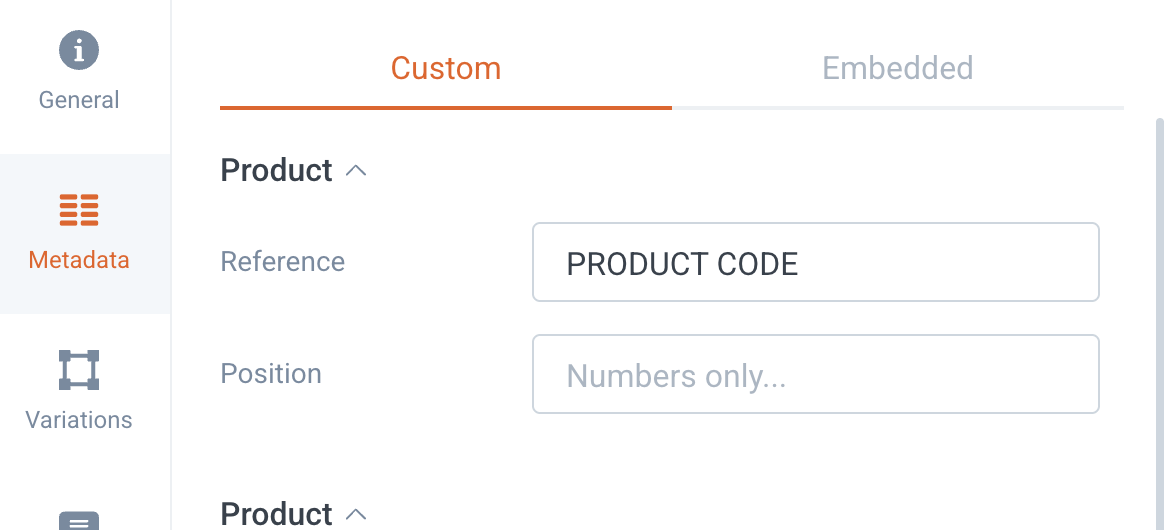
<table><thead><tr><th width="205.359375">Metadata</th><th width="392.11328125">Description</th><th width="262.6015625">Type in DAM</th></tr></thead><tbody><tr><td>Scope</td><td>Asset metadata scope/channel attributes must be synchronized between DAM and PIM, using a multi-select field with identical predefined options in both systems.<br><br>You can use "Sync scope options" to add all scopes/channels from PIM to DAM Metadata field options</td><td>Multiple select</td></tr><tr><td>Locale</td><td>Asset metadata locale attributes must be synchronized between DAM and PIM, using a multi-select field with identical predefined options in both systems.<br><br>You can use "Sync locale options" to add all locale from PIM to DAM Metadata field options</td><td>Multiple select</td></tr><tr><td>Product /Family</td><td>Product family attributes must be synchronized between DAM and PIM, using a select-one field with identical predefined options in both systems.<br><br>To get all options family from PIM you can use Sync family option feature, read bellow.<br><br>You can use "Sync family options" to add all families from PIM to DAM Metadata field options.</td><td>Select one</td></tr><tr><td>Product/Default PIM Product Attribute</td><td>This is the default attribute to which assets will sync if no specific setting is defined in the Product Attribute Mapping.</td><td>N/A</td></tr><tr><td>Product / Product Code</td><td><p>Product code metadata identifies the specific products to be updated during the synchronization process. Use a text field.<br><br>If you use Product reference instead Metadata. Please first Enable Product in DAM / Library / Feature Components</p><p></p><div><figure><img src="https://2536208400-files.gitbook.io/~/files/v0/b/gitbook-x-prod.appspot.com/o/spaces%2Fqsq2dR7Fjagf5eTifWZx%2Fuploads%2F0uj4KkxA4kt9nfxISJPi%2Fimage.png?alt=media&amp;token=cdd145c8-b61d-47fa-a085-949ebc1e5787" alt=""><figcaption></figcaption></figure></div></td><td>Text</td></tr><tr><td>Product / Product model code</td><td>Product model code metadata identifies the specific products to be updated during the synchronization process. Use a text field.</td><td>Text</td></tr></tbody></table>

**Sync family options**

You have to provide a valid API Key in PIM to DAM section to enable this feature.

<figure><img src="https://2536208400-files.gitbook.io/~/files/v0/b/gitbook-x-prod.appspot.com/o/spaces%2Fqsq2dR7Fjagf5eTifWZx%2Fuploads%2FJLIGF6O7IdONGr1l4NrF%2Fimage.png?alt=media&amp;token=846312f0-c3c0-43ed-bbcd-cf3652c2fd80" alt=""><figcaption><p>Sync family options</p></figcaption></figure>

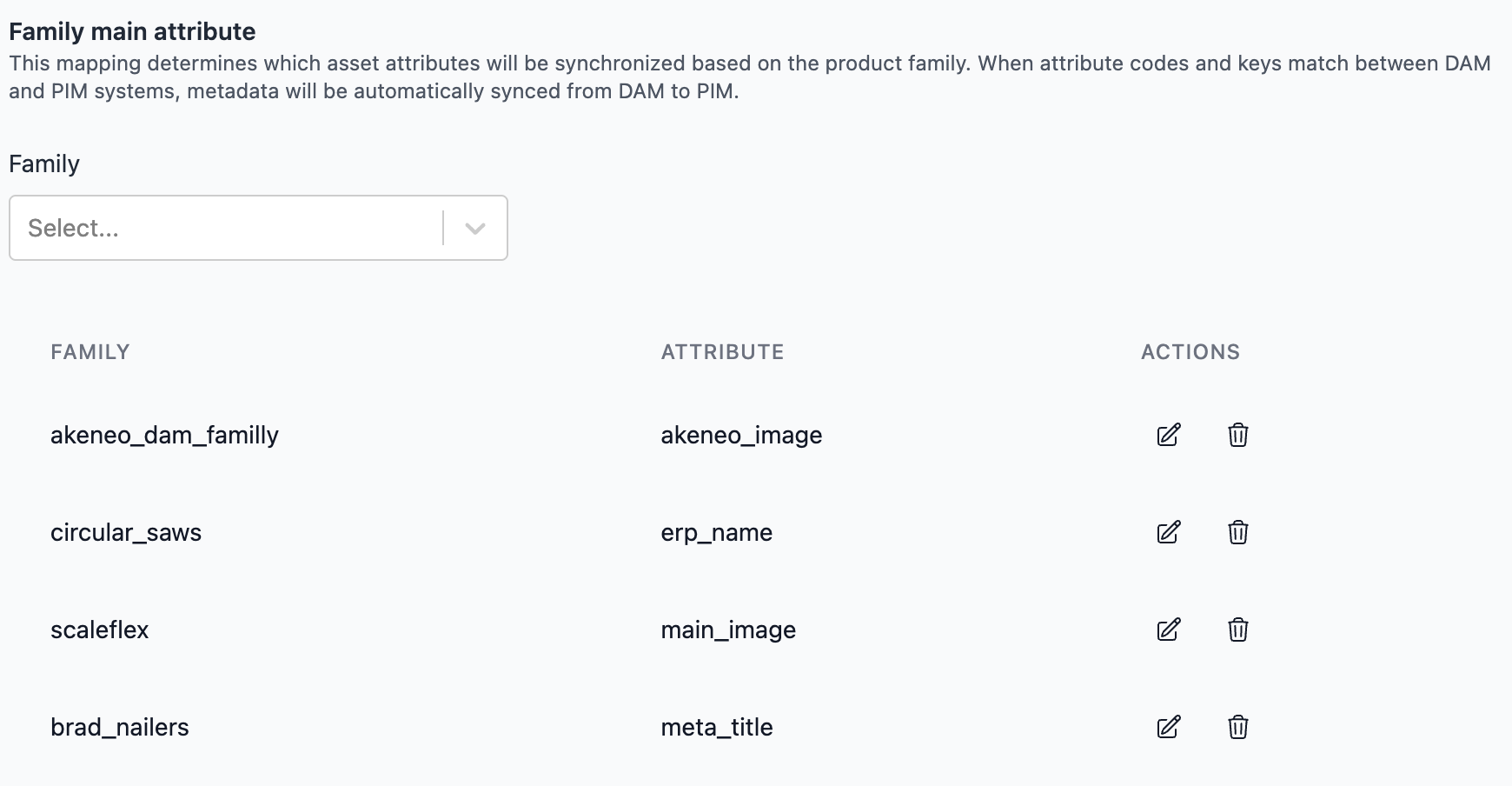
#### Main attribute setting

This mapping determines which asset attributes will be synchronized based on the product family.

* Select Family
* You can set Default attribute options in case all family have the same field. If you don't declare mapping for specific family, this attribute will be use by default.
* Select attribute belong to Family
* You can Edit and Delete

{% hint style="info" %}
You can have 2 main attributes for one Family, each Family can have only one main attribute.
{% endhint %}

<figure><img src="https://2536208400-files.gitbook.io/~/files/v0/b/gitbook-x-prod.appspot.com/o/spaces%2Fqsq2dR7Fjagf5eTifWZx%2Fuploads%2FXd1QEhpjL2ym5rtLZxYy%2Fimage.png?alt=media&amp;token=6c028452-15bb-4c4d-9941-2d6a31ff7a36" alt=""><figcaption></figcaption></figure>

## Synchronization&#x20;

### Metadata version

* Go to any asset, at Metadata section click Edit

* Enter family and code metadata which same in setting page

  * If you use Product Reference Component, Enter code on Product Section on top of Metadata tab

  <figure><img src="https://2536208400-files.gitbook.io/~/files/v0/b/gitbook-x-prod.appspot.com/o/spaces%2Fqsq2dR7Fjagf5eTifWZx%2Fuploads%2FYKnVpqfQLCa1lBMIMLfW%2Fimage.png?alt=media&amp;token=674c88b7-a1f6-49d1-862a-08354f9d9cae" alt=""><figcaption></figcaption></figure>

* Click save

<figure><img src="https://2536208400-files.gitbook.io/~/files/v0/b/gitbook-x-prod.appspot.com/o/spaces%2Fqsq2dR7Fjagf5eTifWZx%2Fuploads%2FUygTYSFCsCiTSOAOl4bq%2Fimage.png?alt=media&amp;token=d087b464-fb66-4ec2-9a5f-da511a67b70a" alt=""><figcaption><p>Edit Asset Metadata</p></figcaption></figure>

If PIM to DAM enabled, any update attribute(supported types) in Akeneo will update in DAM

* It only update asset metadata when change attribute value in PIM if that asset is synced to an Asset or Product in PIM.
* If one asset synced to multiple assets, products, the last one win.

### UI version

* Right click on any asset / More action / Sync to Akeneo

<figure><img src="https://2536208400-files.gitbook.io/~/files/v0/b/gitbook-x-prod.appspot.com/o/spaces%2Fqsq2dR7Fjagf5eTifWZx%2Fuploads%2F4qT5UJEQEKxvdnRYPgej%2Fimage.png?alt=media&amp;token=31eebb03-744d-4364-8218-140a75c927f5" alt=""><figcaption></figcaption></figure>

* Choose Family or Entity, Product
* Choose attribute
* There are 4 cases that can happen:
  * Value per channel and value per locale are both false: Can sync without choose scopes or locales
  * Value per locale is true, value per channel is false: Must choose at least one locale
  * Value per locale is false, value per channel is true: Must choose at least one scope
  * Value per channel and value per locale are both true: Must choose at least one scope and locale

{% hint style="info" %}
Product Code must exist in Akeneo, for Asset and Entity it does not required, if not exist it will create a new one.
{% endhint %}