> For the complete documentation index, see [llms.txt](https://docs.scaleflex.com/llms.txt). Markdown versions of documentation pages are available by appending `.md` to page URLs; this page is available as [Markdown](https://docs.scaleflex.com/portals/viewing-a-portal/share-links.md).

# Share links

Share a set of assets with someone who cannot open your Portal.

A share link is a page of assets with its own address. The person you send it to opens it without an account and without access to the Portal — they see only what you put in the link.

Visitors create these themselves, when you have allowed sharing in [View options](/portals/building-a-portal/sections/gallery/gallery-settings/view-options.md).

{% hint style="info" %}
These are the same objects the DAM calls **Shareboxes** — one feature, reached from two places. See [Sharebox](/portals/viewing-a-portal/sharebox.md) if you arrived looking for that name.
{% endhint %}

## Creating one

1. Gather the assets — add them to the [download cart](/portals/viewing-a-portal/sections/gallery/download-cart.md), or select them in the gallery.
2. Select **Share**.
3. Choose what goes in, across **Assets**, **Folders** and **Items**.
4. Fill in the details, then select **Generate link**.

<div><figure><img src="https://2536208400-files.gitbook.io/~/files/v0/b/gitbook-x-prod.appspot.com/o/spaces%2Fqsq2dR7Fjagf5eTifWZx%2Fuploads%2FIQzkEGv6HhiA0PewFc0i%2Fimage.png?alt=media&#x26;token=504ccf54-59a2-45d2-90b0-93860a13df0f" alt=""><figcaption><p>The assets gathered so far, with <strong>Share</strong> beneath them.</p></figcaption></figure> <figure><img src="https://2536208400-files.gitbook.io/~/files/v0/b/gitbook-x-prod.appspot.com/o/spaces%2Fqsq2dR7Fjagf5eTifWZx%2Fuploads%2FgdQrJU6giJQCAVYUsHFm%2Fimage.png?alt=media&#x26;token=2df0116d-aeb2-42ba-9977-14ea07e08a4a" alt=""><figcaption><p>The <strong>Share assets</strong> dialog: what the link is called, and the terms it carries.</p></figcaption></figure></div>

| Setting                  | What it does                                      |
| ------------------------ | ------------------------------------------------- |
| **Title**                | What the link is called. At least two characters. |
| **Description**          | What it is for.                                   |
| **Visibility**           | **Public**, or **Public & Organization**.         |
| **Include subfolders**   | Whether folders bring their contents.             |
| **Allow asset download** | Whether the recipient can download, or only look. |
| **Require password**     | Adds a password they must enter.                  |
| **Start date**           | The link does nothing until then.                 |
| **Expiration date**      | The link stops working after then.                |

The link is then shown to copy, or you can send it by email — optionally including the password.

{% hint style="success" %}
Sharing a **folder** rather than individual assets keeps the link current: add, change or remove files in that folder and the link reflects it, with nothing to re-share.
{% endhint %}

<figure><img src="https://2536208400-files.gitbook.io/~/files/v0/b/gitbook-x-prod.appspot.com/o/spaces%2Fqsq2dR7Fjagf5eTifWZx%2Fuploads%2F7Iq8uUvP8INf4Cboj2ti%2Fimage.png?alt=media&#x26;token=b94194b0-c68c-4450-9c3b-dfd08e735e6b" alt="" width="375"><figcaption><p>The generated link, ready to copy or send by email.</p></figcaption></figure>

## What the recipient sees

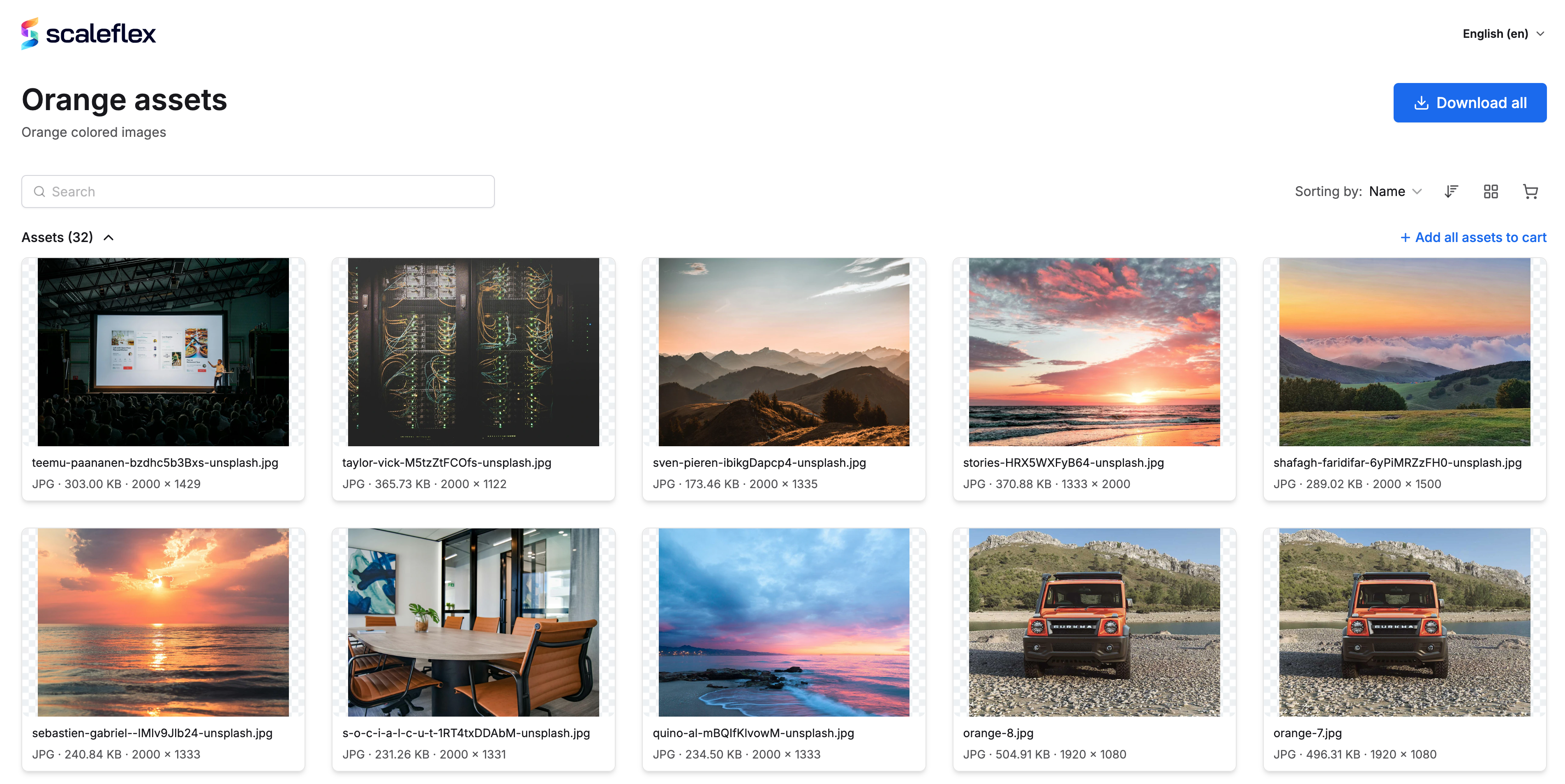
A page carrying your Portal's branding: your logo, your colours, the Portal's languages. Not the Portal itself — just the assets you shared.

They can search, sort by name or file size, switch between grid, list and mosaic, open assets to preview them, add them to a cart and **Download all**.

If the link is protected they meet a password page first — *This link is protected* — and enter the access phrase to get in.

An expired link says so plainly rather than failing: *This link has expired.*

<figure><img src="https://2536208400-files.gitbook.io/~/files/v0/b/gitbook-x-prod.appspot.com/o/spaces%2Fqsq2dR7Fjagf5eTifWZx%2Fuploads%2FWZHjX07X6vKyXefBbKmq%2Fimage.png?alt=media&#x26;token=f34a45d6-355f-487d-8775-9dd6608cbd27" alt=""><figcaption><p>What the recipient opens — the shared assets, carrying your Portal's branding.</p></figcaption></figure>

## My shared links

A signed-in visitor can see the links they have made, under **My shared links** in their own menu: copy a link again, view it as the recipient does, send it by email, edit what is in it or what it allows, and delete it.

<figure><img src="https://2536208400-files.gitbook.io/~/files/v0/b/gitbook-x-prod.appspot.com/o/spaces%2Fqsq2dR7Fjagf5eTifWZx%2Fuploads%2FSG2PCxc0Pst54iBlTG2t%2Fimage.png?alt=media&#x26;token=8a55490b-f330-47ac-b87b-84e1fbee61cc" alt="" width="356"><figcaption><p><strong>My shared links</strong>, in a signed-in visitor's own menu.</p></figcaption></figure>

Deleting a link revokes it — anyone holding the address loses access immediately.

<figure><img src="https://2536208400-files.gitbook.io/~/files/v0/b/gitbook-x-prod.appspot.com/o/spaces%2Fqsq2dR7Fjagf5eTifWZx%2Fuploads%2FXw85eHIZUYSzMs86Fd0S%2Fimage.png?alt=media&#x26;token=a2b27800-f724-4634-9422-dd98df783ce3" alt=""><figcaption><p>The panel it opens, listing that visitor's links with <strong>View</strong> and a … menu on each.</p></figcaption></figure>

## Good to know

* Set an **expiration date** when you create a link, not later. A link with no expiry is permanent until someone remembers to remove it.
* **Allow asset download** off makes a link for looking at, not taking from — useful for review rounds and work in progress.
* You can review and manage every link made from the Portal in [Shared links](/portals/portal-settings/shared-links.md).
* The reverse direction — letting someone send files **to** you — is an [Airbox](/portals/viewing-a-portal/airbox.md).